2. Operating System Priority 2
Fedora 6
Here we describe the installation process of Fedora 6. Be aware that some screen shots may differ from your installation.
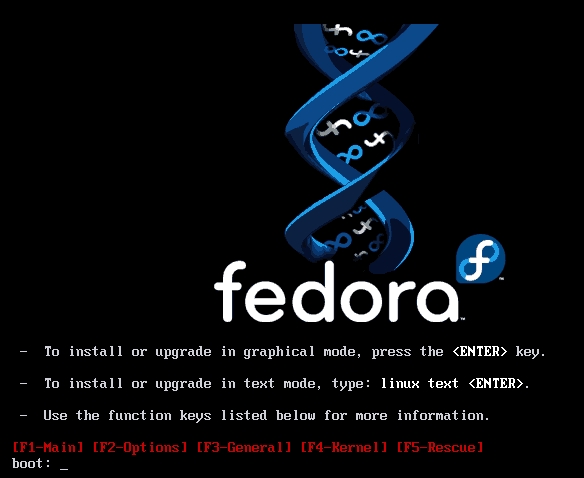
  • Boot the system

    graphic
  • Press Enter
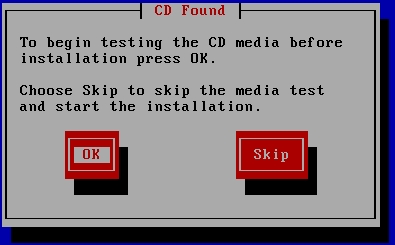
  • Press 'OK' or if you don't have any passions press 'Skip'

    graphic
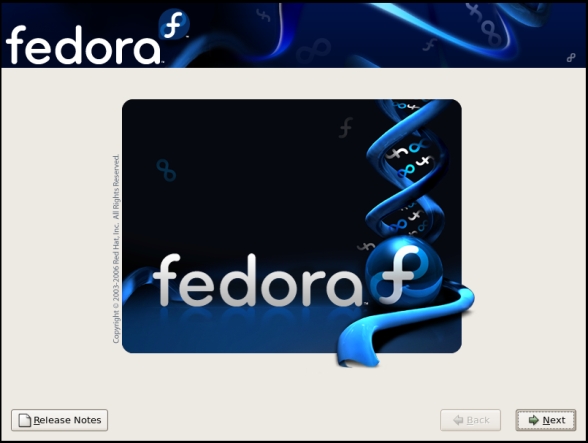
  • Press 'Next'

    graphic
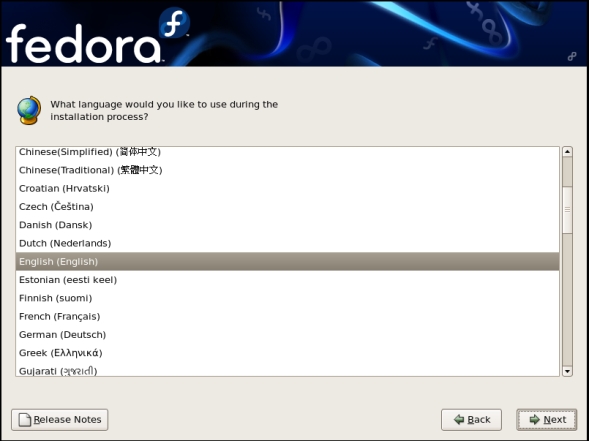
  • Select you language and press 'Next'

    graphic
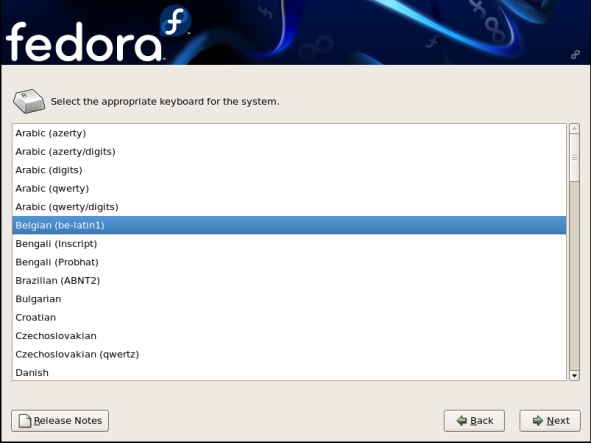
  • Select your keyboard layout and press 'Next'

    graphic
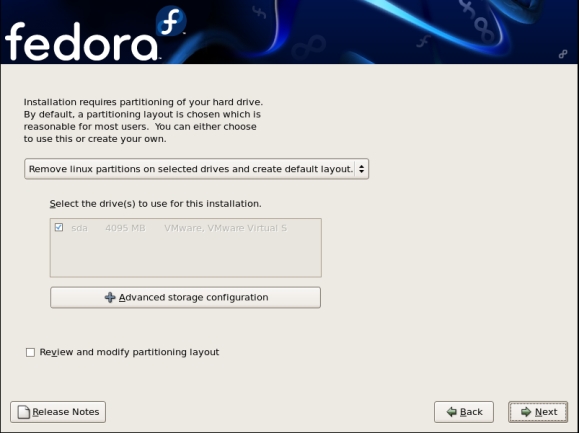
  • If you feel confident to change the layout of the disk, you can do so. In other case, press 'Next'

    graphic
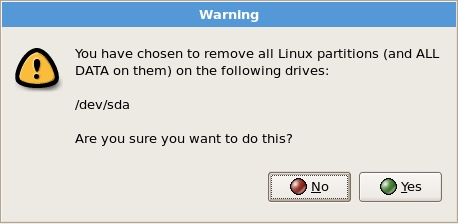
  • Press 'Yes'

    graphic
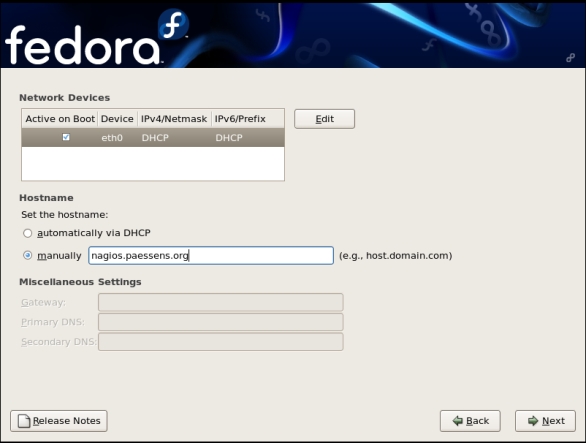
  • Enter the network settings of you installation. Normally you will use a fixed IP-address and name as well. When finished, press 'Next'

    graphic
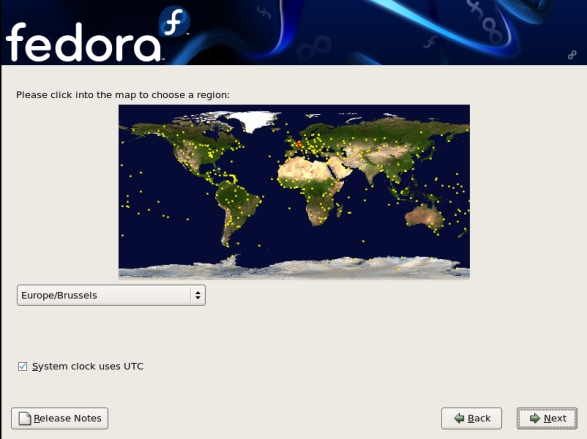
  • Select you timezone and press 'Next'

    graphic
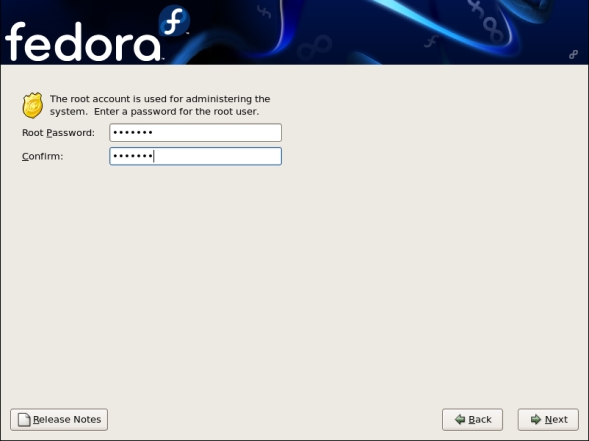
  • Provide the password for root and press 'Next'

    graphic
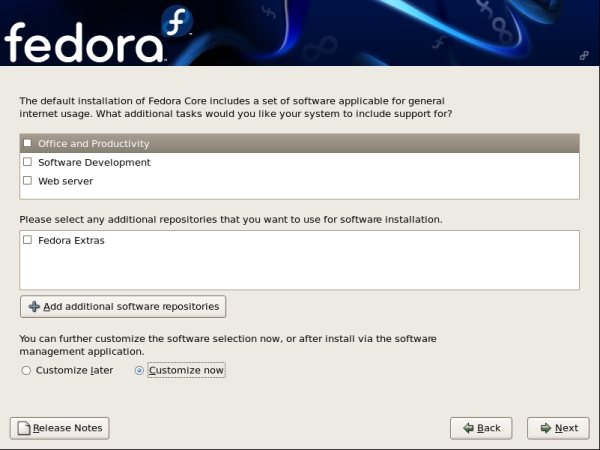
  • Deselect 'Office and Productivity', Select 'Customize now'
    Press 'Next'

    graphic
  • Unselect and select the items required. Be sure you selected WWW-Server. As well the package 'mrtg'.
    When finished press 'Next'
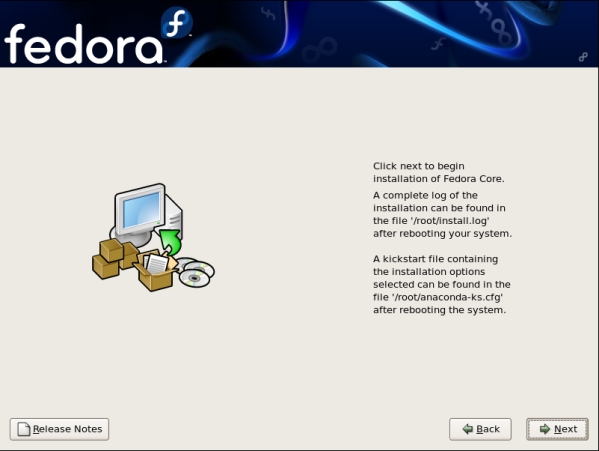
  • Press 'Next'

    graphic
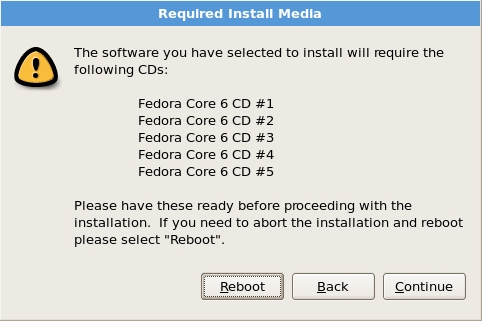
  • Press 'Continue'

    graphic
  • Provide when necessary the required CD.
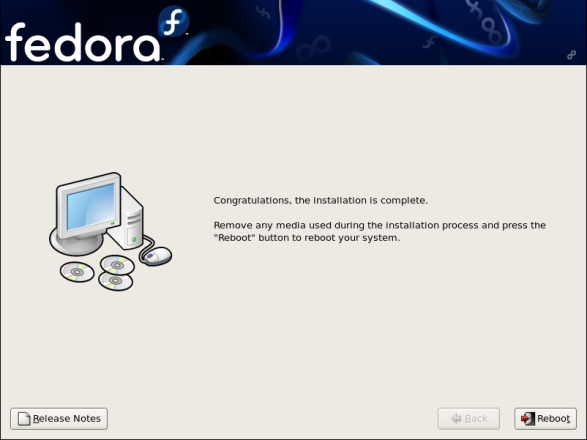
  • Press 'Reboot'

    graphic
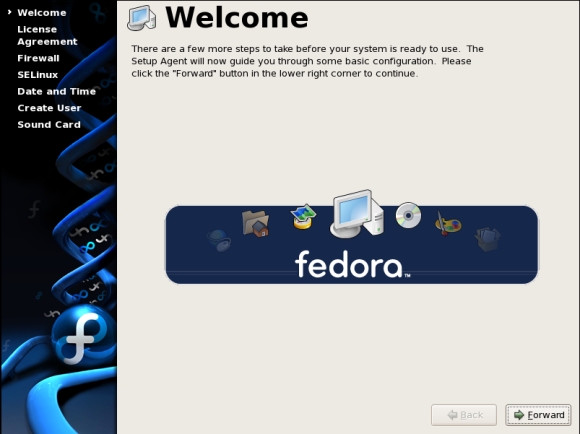
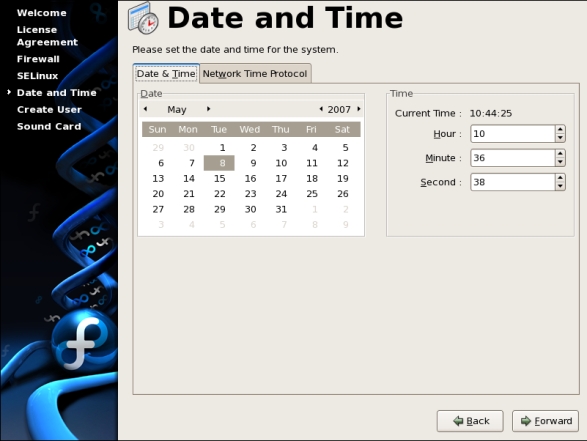
  • Now the system will reboot and come to the welcome screen.
    Press 'Forward'

    graphic
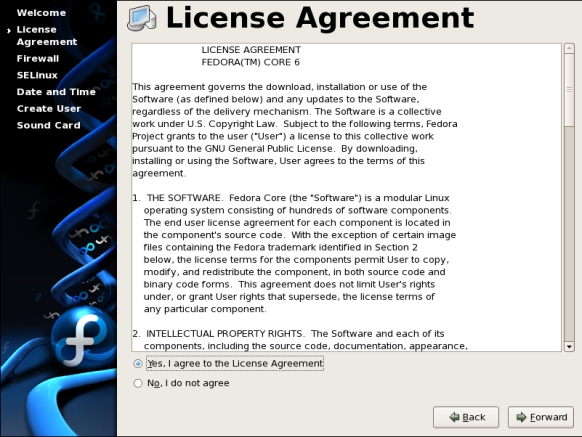
  • Select 'Yes, I agree...' and press 'Forward'

    graphic
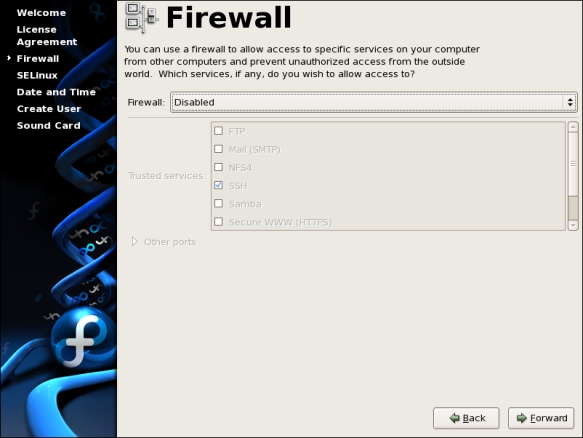
  • Disable for now, the firewall. You can reactivate it later on. Press 'Forward'

    graphic
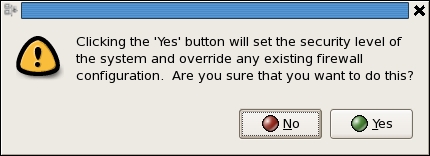
  • Press 'Yes'

    graphic
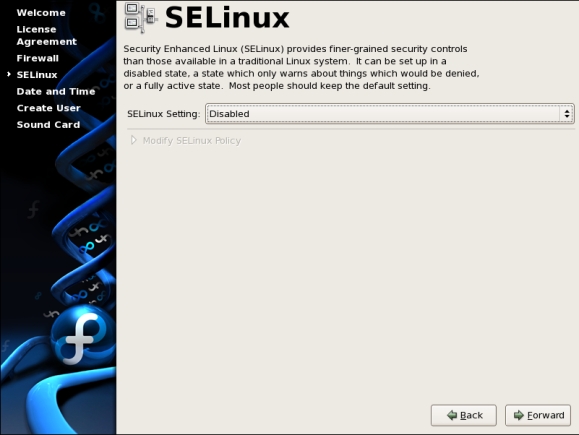
  • Also here, disable SELinux on this moment. Some problems may encountered later on when still enabled. Press 'Forward'.

    graphic
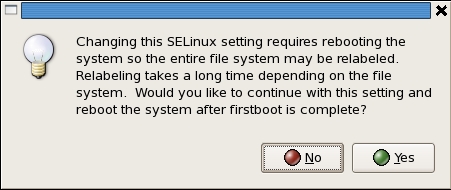
  • Press 'Yes'

    graphic
  • Press 'Forward'

    graphic
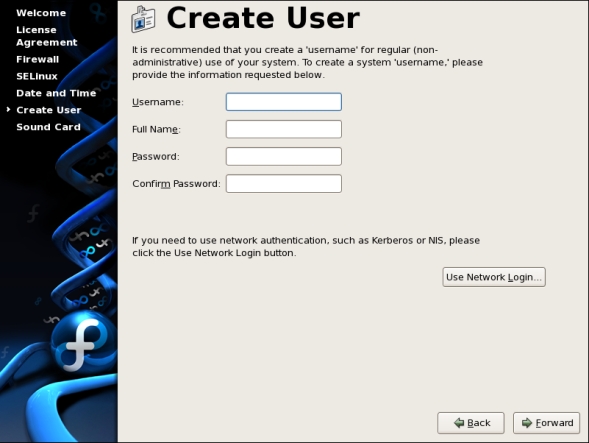
  • Create a user and press 'Forward'

    graphic
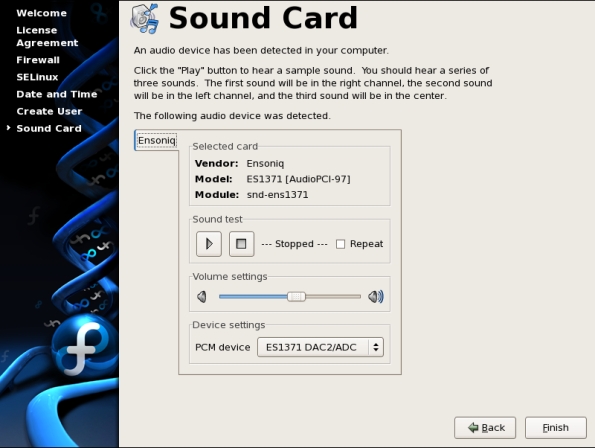
  • Press 'Finish'

    graphic
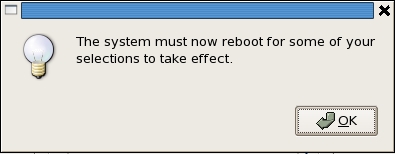
  • Press 'OK'

    graphic